// 2026-06-14 · Tools & Utilities · by Bob Smith
Squoosh: Shrink Images Without Wrecking Them
Squoosh compresses images in your browser with a live side-by-side quality slider. Nothing uploads, nothing installs, and your files get dramatically smaller.
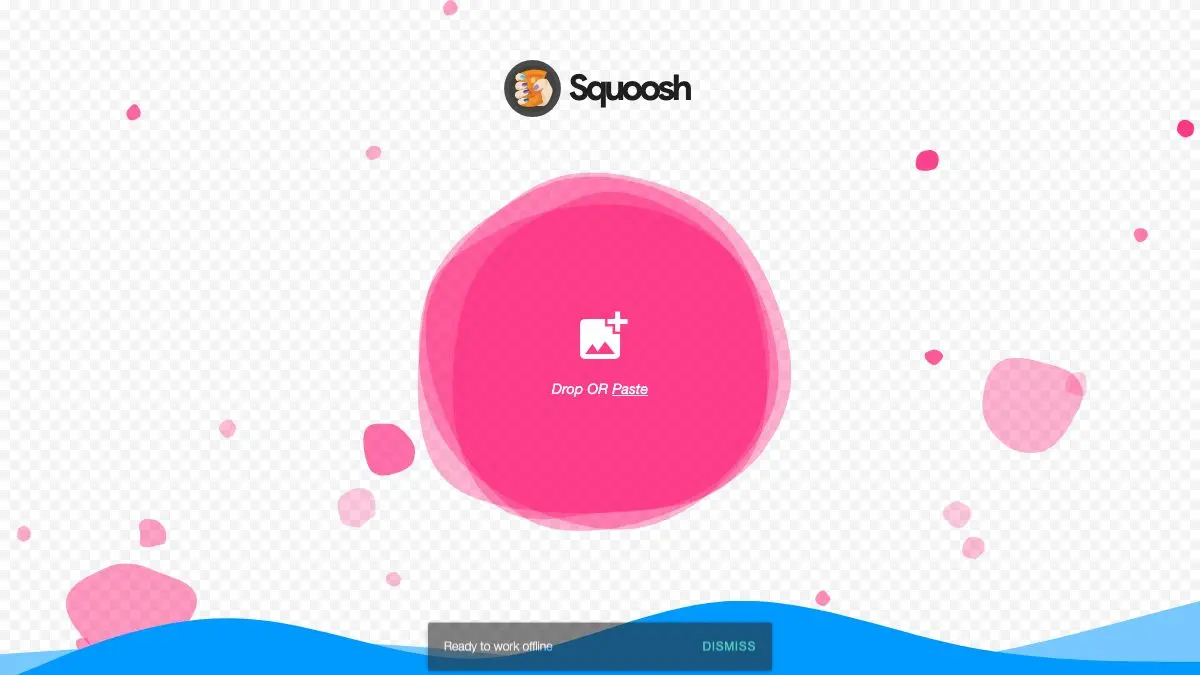
Squoosh is a free image compressor that runs entirely inside your browser. Drag in a photo, and you get a split-screen view: original on the left, compressed on the right, with a slider you drag across to compare them pixel for pixel. Crank the quality down until you can see the damage, then nudge it back up one notch. That’s the whole workflow, and it takes about twenty seconds.
What is Squoosh?
Every other image compressor asks you to upload your file to a server, wait, and trust a number you can’t verify. Squoosh does none of that.
It’s built by Google as an open-source project, and its three stated selling points are exactly right: small, simple, secure. Smaller images mean faster load times. You open an image, inspect the differences, and save instantly. And on privacy, images never leave your device, because Squoosh does all the work locally.
That last point deserves emphasis. Everything happens in your browser. No upload, no queue, no “we may use your files to improve our service.” You can compress a client’s unreleased product photos on hotel wifi and nothing goes anywhere.
What can you do on Squoosh?
- Compare compression live. The split view with the draggable divider is the killer feature. You are not guessing whether quality 60 is acceptable: you can see it.
- Try different codecs on the same file. MozJPEG, WebP, AVIF, OxiPNG and more. Switch between them and watch the file size readout change in real time.
- Watch the size counter. It tells you the new file size and the percentage saved as you drag the quality slider. Deeply satisfying.
- Resize while you’re there. Most oversized images on the web aren’t over-compressed, they’re just too many pixels wide. Squoosh will scale them down in the same pass.
- Reduce the palette. For flat-color graphics and screenshots, cutting the number of colors often saves more than any quality slider will.
- Try it on the samples. If you arrive without a file, there are demo images right on the homepage: a photo, some artwork, a device screen, a logo, so you can play immediately.
Tips to get the most out of it
Resize before you compress. A 4000px-wide photo displayed at 800px is wasting most of its data no matter how clever the codec is. Cut the dimensions first, then compress. The savings compound.
Zoom into the worst area, not the whole image. Compression artifacts hide in gradients, skies and smooth skin, not in busy textures. Zoom the comparison view into the sky or a flat background and drag the divider there. If it survives that, it survives everything.
Use AVIF or WebP for photos, OxiPNG for anything with flat color. Screenshots, diagrams, logos and text-heavy images look terrible under aggressive JPEG-style compression and compress beautifully as PNG. Photos are the exact opposite.
Push the quality lower than feels right, then back off. Most people stop at 80 out of habit. Drag to 45, look at it honestly, and creep upward until it’s acceptable. You’ll usually land well under 80 with no visible difference.
Remember it works offline. Because all the processing is local, Squoosh keeps working on a plane. Load the page before you take off and you have an image compressor at 35,000 feet.
If you like Squoosh, also try…
- remove.bg: cuts the background out of a photo in one click.
- CloudConvert: when you need to convert a format Squoosh doesn’t handle.
- iLovePDF: the same “one obvious job, done well” energy, for PDFs.
- Photopea: a full Photoshop-grade editor in the browser for when compression isn’t enough.
Plenty more in Tools & Utilities and Design & Creativity.
Drop a bloated photo onto Squoosh and watch two megabytes turn into two hundred kilobytes. It never stops being satisfying.
Frequently asked questions
What is Squoosh?
Squoosh is a free web app from Google that compresses and converts images entirely inside your browser. You drop in a photo, pick a codec and quality setting, and a split-screen view shows the original next to the compressed version so you can see exactly what you're losing. The site describes itself as the ultimate image optimizer that lets you compress and compare images with different codecs in your browser.
Is Squoosh free?
Yes, Squoosh is completely free with no account, no watermarks, no file limits and no paid tier. It is an open-source project and the code is available on GitHub.
Does Squoosh upload my images to a server?
No. Squoosh does all the work locally on your own device, so your images never leave your computer. That makes it safe for sensitive screenshots, client work and anything you would not want sitting on someone else's server.
Which image format should I choose in Squoosh?
For photos on the web, WebP or AVIF will usually give you far smaller files than JPEG at the same visual quality. MozJPEG is the safe universal choice when maximum compatibility matters, and OxiPNG is best for screenshots, logos and anything with flat color or transparency.