// 2026-06-29 · Design & Creativity · by Bob Smith
WebGL Fluid Simulation: Swirl Color With Your Cursor
WebGL Fluid Simulation turns your browser into a pool of glowing liquid color. Drag to swirl it, tweak the physics, grab a screenshot. Free and hypnotic.
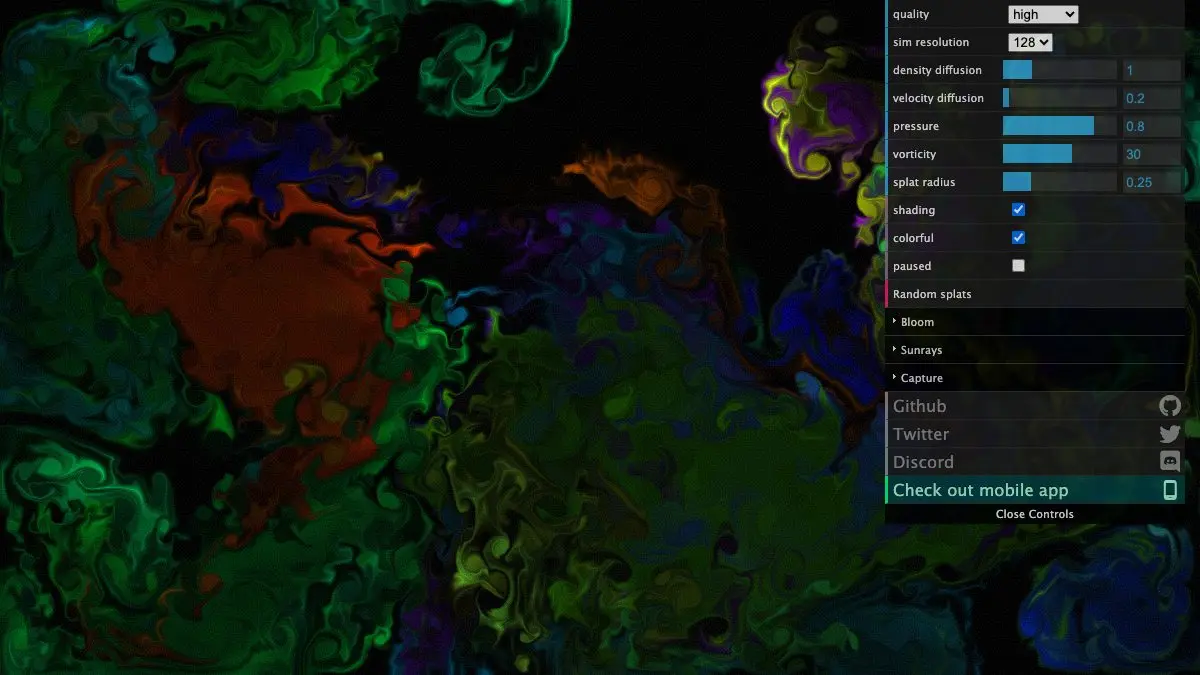
WebGL Fluid Simulation is a single web page that turns your browser into a tank of glowing liquid. Move your cursor and you push colored dye through it; the fluid swirls, curls, bleeds into itself and slowly fades. It is free, it needs no signup, and it is one of the most immediately satisfying things on the internet.
Click. Drag. That’s the entire tutorial.
What is WebGL Fluid Simulation?
It’s a real-time fluid dynamics simulation running on your graphics card, wrapped in the least intimidating interface imaginable: a black screen and your mouse.
Every stroke does two things at once. It injects dye, a splash of color, and it injects momentum. The simulation then works out where that momentum goes. Fast strokes tear the fluid apart into thin filaments. Slow ones push fat, lazy clouds around. Draw a circle and you get a vortex that keeps spinning long after you’ve let go, gradually eating its own color until there’s nothing left.
What makes it hypnotic isn’t the physics though. It’s that the physics is right. Real fluid does that curling, feathering, self-swallowing thing, and your eyes recognize it instantly even if you’ve never thought about vorticity in your life. The result looks less like a computer graphic and more like ink dropped into water and filmed at high speed.
It’s also refreshingly honest about being a toy. There’s no goal, no score and nothing to save unless you want to. It’s a thing that is nice to touch.
What can you do with it?
At the surface: drag, and enjoy. Underneath, there’s a settings panel that opens up the whole simulation.
- Drag with multiple fingers. On a touchscreen you can drive several dye streams at once, braiding them together. This is genuinely better than the mouse experience.
- Adjust dissipation. How quickly does the color fade, and how quickly does the motion die down? Turn dissipation way down and your strokes persist almost forever, building up into a dense marbled painting.
- Push vorticity up. This is the swirl control. Crank it and the fluid develops far more small curls and eddies, which looks spectacular and slightly unhinged.
- Change the splat size. Tiny splats give you delicate threads. Huge ones give you great blooming clouds that fill the screen in one stroke.
- Turn on the glow. Bloom and sunray effects push the whole thing from “simulation” into “album cover.” The colors start radiating light.
- Change resolution. The simulation and dye resolutions are separate. Higher looks sharper, lower runs faster on modest hardware: and lower actually looks quite good, in a soft-focus way.
- Take a screenshot. There’s a capture button, so when you accidentally make something beautiful you can keep it.
Go make a mess at the WebGL Fluid Simulation page.
Tips to get the most out of it
- Stop dragging constantly. The best-looking moments happen a second or two after you let go, when the fluid is doing its own thing. Make one deliberate stroke, then keep your hands off and watch it unfold.
- Turn dissipation down and paint slowly. With the fade turned way down, the canvas stops being a toy and becomes a medium. Layer stroke over stroke and you get marbled paper effects that hold together long enough to screenshot.
- Fast flicks beat long swipes. A quick flick injects a lot of momentum into a small area, which is what produces those dramatic tearing filaments. Long slow drags mostly just smear.
- Drag from off-screen inward. Starting your stroke outside the window edge and sweeping in creates a clean directional jet rather than a blob with a start point. Great for setting up currents before you add color.
- Turn it into a background. Leave it fullscreen on a second monitor with random splats enabled and it’s a free, generative screensaver that never repeats.
If you like WebGL Fluid Simulation, also try…
- Weave Silk: the same “drag and something beautiful happens” feeling, but symmetrical and delicate instead of turbulent.
- Patatap: press any key, get a shape and a sound. Synesthesia as a web page.
- Sandspiel: particle simulation with rules: sand, water, fire, plants and a whole lot of consequences.
- Bruno Simon: another demonstration that browsers can do far more visually than anyone expects.
- More visual playgrounds in Design & Creativity.
Frequently asked questions
What is WebGL Fluid Simulation?
WebGL Fluid Simulation is a free browser page that renders a real-time simulation of moving liquid. Dragging your cursor injects colored dye and momentum into the fluid, which then swirls, diffuses and fades according to actual fluid dynamics. It runs entirely on your graphics card inside the browser.
Is WebGL Fluid Simulation free?
Yes, completely. There is no signup, no paywall and no download, it is a single web page, and the project's source code is openly available for anyone to read or reuse.
Does WebGL Fluid Simulation work on a phone?
Yes. It works with touch input and supports multiple fingers at once, which is arguably better than a mouse because you can drive several streams of color through the fluid simultaneously.
Can I change how the fluid looks?
Yes. A settings panel exposes the simulation's parameters, resolution, how fast the dye dissipates, vorticity, splat size, plus visual effects like bloom and sunrays. There is also a screenshot button for saving a frame you like.
Visit WebGL Fluid Simulation →
← All posts · Browse the directory