// 2026-09-08 · Music & Audio · by Bob Smith
Audio Cutter: Trim a Song in Your Browser Without Installing Anything
Audio Cutter at mp3cut.net trims any audio file with two sliders, adds fade in and fade out, pulls the sound out of a video, and exports a 40-second iPhone ringtone — free, no software, no account.
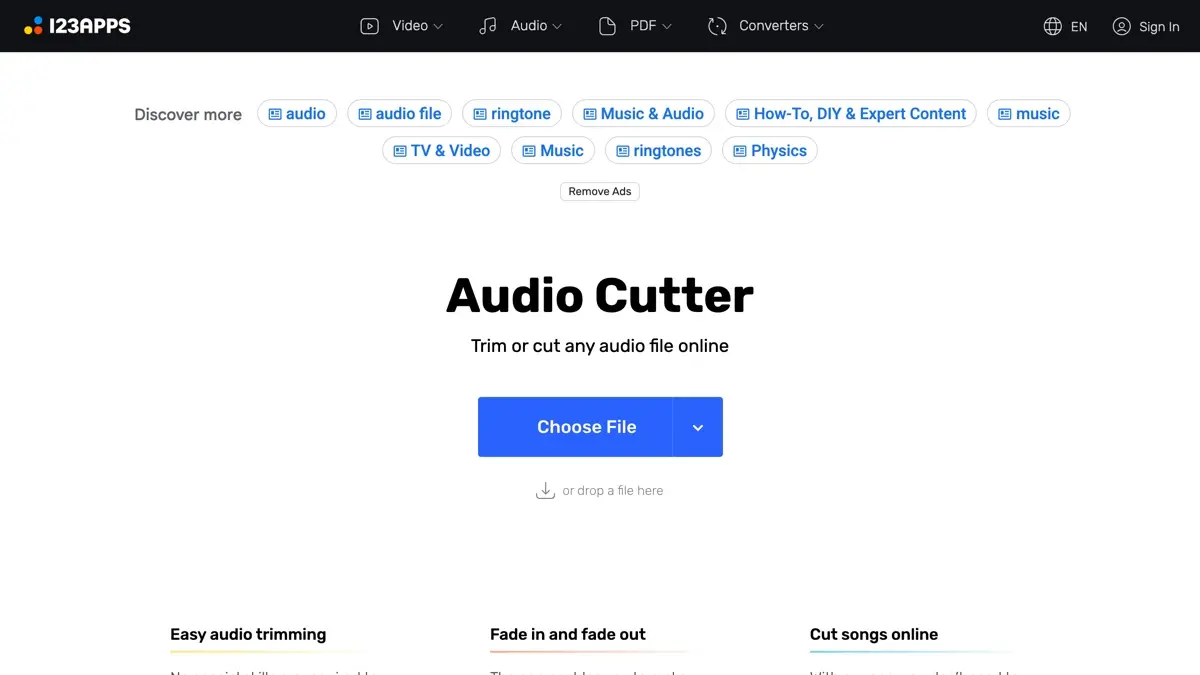
Audio Cutter exists for the ninety seconds a year you need to cut a song in half and cannot justify learning Audacity to do it.
Open a file. Drag two sliders. Download the bit between them. That is the entire product, and it takes about forty seconds start to finish.
What is Audio Cutter?
Trimming audio is a genuinely simple operation buried under decades of complicated software. Audacity is excellent and vastly overqualified. Your phone’s voice memo app crops but will not export where you need it. Every “free MP3 cutter” download result is a toolbar with a hostage.
Audio Cutter is the boring correct answer: a single page at mp3cut.net with a Choose File button and a waveform. It is built by 123apps, who run a whole shelf of these — a joiner, a converter, a voice recorder, a video cutter — each doing one thing and linking to the others.
The editor is plain in a way that turns out to be the feature. A waveform, two draggable handles, a play button, and controls for fade in and fade out. There are also pitch, speed and volume adjustments if you want them, and a format picker on the way out.
Two things it does that surprise people. It takes video files, so you can drop in an MP4 and walk away with just the audio, trimmed. And it has a ringtone mode: one click sets a 40-second cap and exports .m4r, which is exactly the format and length iOS insists on.
One honest caveat, since the tool does not lead with it: your file is uploaded to 123apps’ servers to be processed, not chopped up locally in your browser. That is fine for a pop song. It is not the right home for a confidential recording.
What can you do on Audio Cutter?
- Trim a track to the part you actually want. Drag the handles, preview the selection, save. No timeline, no tracks, no project file.
- Fade in and out. The difference between an edit that sounds intentional and one that sounds like a mistake, and it is two checkboxes.
- Make an iPhone ringtone. The 40-second m4r constraint is applied for you, which is the part everyone gets wrong doing this manually.
- Pull audio out of a video. Drop in the MP4, keep the sound.
- Convert on the way out. MP3, WAV, M4A, FLAC, OGG — pick at export, which quietly makes this a converter too.
- Load from cloud storage. Google Drive and Dropbox files can go in directly, useful when the audio is not on the machine you are sitting at.
Tips to get the most out of it
Always add a short fade. A hard cut mid-waveform produces an audible click. A 0.5-second fade in and fade out removes it entirely, and costs you nothing.
Zoom before you trust the handles. The sliders are coarse at full-track width. Zoom into the waveform and the cut point moves from roughly-right to exactly-right — which matters most on the first beat.
Cut the ceremony and first-dance music before the day, not on it. This is the tool’s most common real-world use: a processional edited down to the length of the actual walk, a first dance trimmed from four minutes to a survivable two and a half, an entrance clipped to start on the drop instead of the intro. Export MP3, hand it to whoever is running the sound, and keep a copy on a phone as backup. If the rest of the day still needs organising, InviteCount runs wedding planning sessions on Topmate and the first fifteen-minute call is free.
Do the ringtone transfer the modern way. The site still says iTunes. On macOS since Catalina it is Finder: plug in the phone, select it in the sidebar, drag the .m4r onto it. On Android, skip all this and drop an MP3 into the Ringtones folder.
Use the joiner for the other half of the job. If you are stitching clips rather than cutting them, Audio Joiner is the sibling tool, with crossfades between tracks.
Keep the original. Exports are re-encoded, so cutting an already-lossy MP3 loses a little more quality each round. Edit from the best copy you have, once.
If you like Audio Cutter, also try…
- CloudConvert: the heavyweight converter for when the format, not the length, is the problem.
- Squoosh: the same single-purpose spirit aimed at images, with a live before-and-after comparison.
- iLovePDF: split, merge and compress PDFs in the same “one page, one job” way.
- Webamp: once the file is trimmed, play it in a pixel-perfect Winamp in your browser.
More one-job tools live in Tools & Utilities, and the rest of the listening happens over in Music & Audio.
Frequently asked questions
What is Audio Cutter?
Audio Cutter, at mp3cut.net, is a free browser tool for trimming audio. You open a file, drag two sliders to mark the section you want, optionally add a fade in and fade out, and download just that section. It handles over 300 formats, extracts the audio track out of a video file, and has a one-click mode that exports a 40-second m4r iPhone ringtone. It is made by 123apps, who run a family of similar single-purpose browser tools.
Is Audio Cutter free? Do I need an account?
The tool is free to use and does not require an account. The free tier is ad-supported and capped at 35 jobs a day, which is far more than a one-off edit needs. A premium subscription at around $6 a month removes the ads and the daily cap. There is no watermark on the audio either way.
Does my file get uploaded to a server?
Yes. Files go to 123apps' servers for processing rather than being handled entirely on your own machine, and you can also pull them in from Google Drive or Dropbox. That is worth knowing before you feed it anything confidential — a recorded call, an unreleased track, a private interview. For a song you are cutting down for a party playlist it is a non-issue; for sensitive audio, use a desktop editor instead.
How do I make an iPhone ringtone with it?
Pick the section you want — the ringtone preset caps it at 40 seconds, which is the limit iOS accepts — and choose the m4r output format before saving. You then transfer the m4r file to your phone through Finder on macOS or iTunes on Windows. Android is simpler: any MP3 export dropped into the phone's Ringtones folder works.
What file formats does it support?
Over 300, including MP3, WAV, M4A, AAC, FLAC, OGG and OPUS on the audio side, plus common video containers when you are extracting a soundtrack. Output can be saved as MP3, WAV, M4A, M4R for ringtones, FLAC or OGG.
Can it cut the audio out of a video?
Yes. Load a video file and it takes the soundtrack, which you then trim like any other audio. If you only want the whole audio track untouched, 123apps also run a dedicated audio extractor, but the cutter does both jobs in one pass.