// 2026-08-11 · Productivity · by Bob Smith
Mermaid Live Editor: Type a Diagram, Watch It Draw Itself
Mermaid Live Editor turns a few lines of plain text into flowcharts, sequence diagrams, Gantt charts and thirty other diagram types — free, no account, and the whole diagram lives in the URL.
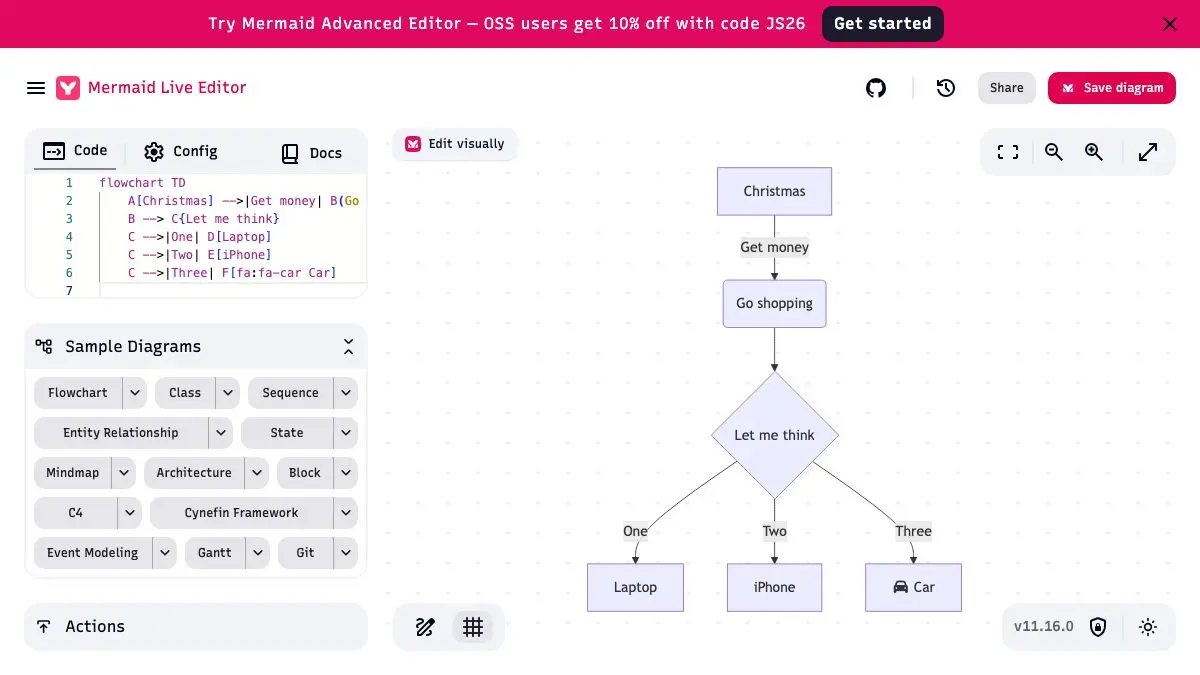
Mermaid Live Editor is a text box on the left and a diagram on the right. You write six lines that look like an outline, and a flowchart draws itself as you type. That is the whole product, and it is one of the most quietly useful pages on the internet.
The idea underneath it is older than the editor: diagrams should be text. A picture of your architecture that lives as a PNG is a dead end — nobody can diff it, nobody can edit it six months later, and the person who had the source file has left. A diagram written as eight lines of text sits in your repository next to the code, shows up in code review as a readable change, and never needs the original author.
What is Mermaid, and what is the Live Editor?
Mermaid is a JavaScript diagramming tool that renders Markdown-inspired text definitions into diagrams. Knut Sveidqvist created it to make documentation less painful, and Tyler Long has been a leading collaborator since 2017. It won the JS Open Source Awards in 2019 for the most exciting use of technology, and it now supports over thirty diagram types.
The Live Editor is the official place to write that text and see the result immediately. The left pane has three tabs: Code for the diagram itself, Config for the JSON that controls theme, fonts and layout, and Docs for the syntax reference so you are not tab-switching to look up how an arrow works. Under the editor sits a Sample Diagrams picker, which loads a working example of any diagram type — the fastest way to learn a syntax you have never used. At the bottom is the Actions panel: PNG export with a size you set, SVG export, Kroki, Copy Image, Copy Markdown, and Load Gist.
The editor is open source under the MIT licence, maintained by the mermaid-js organisation, and self-hostable via Docker if you want it behind your own firewall. The version renders in the corner of the page — v11.16.0 at the time of writing — so you can tell whether a syntax feature you read about has landed yet.
There is a commercial product being advertised alongside it these days: a banner across the top and a Save diagram button both lead to the paid AI-assisted editor. The free editor is unaffected. Close the banner and carry on.
What can you do with it?
- Write a flowchart in six lines.
flowchart TDfollowed byA[Start] --> B{Decide}is a working diagram; the layout engine handles the geometry so you never drag a box. - Reach for thirty-odd diagram types, including sequence, class, state, entity relationship, requirement, Gantt, Git graphs, mindmaps, timelines, kanban, Sankey, pie, quadrant, radar, XY, treemap, Venn, C4, architecture, packet, user journey, Ishikawa, Cynefin, Wardley maps and ZenUML.
- Share by link. The whole diagram is compressed into the URL fragment, so a link is a complete, editable copy for whoever you send it to.
- Export properly. SVG for documents that get scaled, PNG at a width you specify for chat and slides, or straight to the clipboard as an image.
- Paste into GitHub as text. Copy Markdown gives you a fenced
mermaidblock that GitHub renders natively in issues, pull requests, discussions, wikis and repository Markdown. - Theme it. The Config tab takes Mermaid’s JSON configuration, so dark theme, curved edges and font choices are two edits away.
- Recover an earlier attempt. The History panel keeps recent local versions, which saves you when a refactor of the diagram goes badly.
- Run it yourself. Docker Compose config lives in the repository for teams who cannot paste internal architecture into a hosted page.
Tips to get the most out of it
- Treat the URL as the save button. Bookmark it, paste it into the ticket, drop it in the channel. There is no document to lose because there is no document.
- But keep the source in your repository too. The real payoff is a diagram that lives beside the code and changes in the same pull request. The editor is for drafting, not for storage.
- Start from a sample. Sequence and Gantt syntax are much easier to modify than to remember. Load the sample, delete its contents, keep its shape.
- Set the PNG width before exporting. Auto gives you the on-screen size, which is usually too small for slides. Type a width of 2000 and the export is crisp.
- Prefer SVG for anything that gets zoomed. Documentation sites, PDFs and print all want the vector.
- Use the Config tab rather than fighting the layout.
"theme": "dark"and a differentcurvesetting fix most of what looks wrong before you start rewriting node definitions. - Check the version against the docs. Mermaid adds diagram types quickly, and the one you read about last week may need a newer renderer than the site or your GitHub instance is running.
If you like the Mermaid Live Editor, also try…
- Excalidraw: the opposite instinct — hand-drawn boxes you move yourself, for when the diagram is a conversation rather than a document.
- regex101: the same live-feedback trick applied to regular expressions, with an explanation pane that tells you what you actually wrote.
- Desmos Graphing Calculator: type an equation, watch the curve appear — text in, picture out, immediately.
- Cheatography: thousands of printable reference cards for the syntaxes you keep half-remembering.
Browse more things worth bookmarking in our Productivity collection.
Frequently asked questions
What is the Mermaid Live Editor?
It is the official browser playground for Mermaid, a diagramming tool that renders Markdown-inspired text definitions into diagrams. The editor is a two-pane page: you type Mermaid syntax on the left and the diagram redraws on the right as you type. It covers every diagram type Mermaid supports — over thirty of them, including flowcharts, sequence, class, state and entity relationship diagrams, Gantt charts, mindmaps, timelines, Sankey diagrams, Git graphs, quadrant and XY charts, Wardley maps and more. The editor is MIT-licensed, maintained by the mermaid-js organisation on GitHub, built with SvelteKit, and can be self-hosted with the provided Docker setup.
Is it free, and do I need an account?
The editor at mermaid.live is free and needs no account. Nothing in the editing, previewing, exporting or sharing flow is gated. There is a commercial product from the same people — an AI-assisted, visual, storage-backed editor promoted by a banner across the top of the page and by the Save diagram button — but that is an upsell to a separate service, not a limit on the free editor. Ignore the banner and everything still works.
How do I save or share a diagram without an account?
The diagram is the URL. The editor compresses your source and configuration into the fragment after #pako: in the address bar, which means bookmarking the page saves the diagram and sending the link sends the diagram — the recipient opens it and can edit their own copy immediately. There is no server-side document, so the link is as durable as your bookmark. The Share button produces view and edit links, the History panel keeps your recent local versions, and Load Gist pulls a definition from a GitHub gist if you would rather store it there.
Where can I use the diagram once I have made it?
The Actions panel exports PNG at a size you choose, exports SVG, copies the image to the clipboard, and copies Markdown ready to paste. That last one matters because GitHub renders Mermaid natively: a fenced code block tagged mermaid becomes a diagram in issues, pull requests, discussions, wikis and Markdown files in a repository. That means the diagram in your README stays text — reviewable in a diff, editable in a pull request — instead of being a PNG someone has to redraw.