// 2026-08-05 · Productivity · by Bob Smith
Notepad: A Blank Page in Your Browser, No Account Required
Notepad is a browser tab that behaves like a text file. Open it, type, close it, come back later and your text is still there. No login, no sync, no clutter.
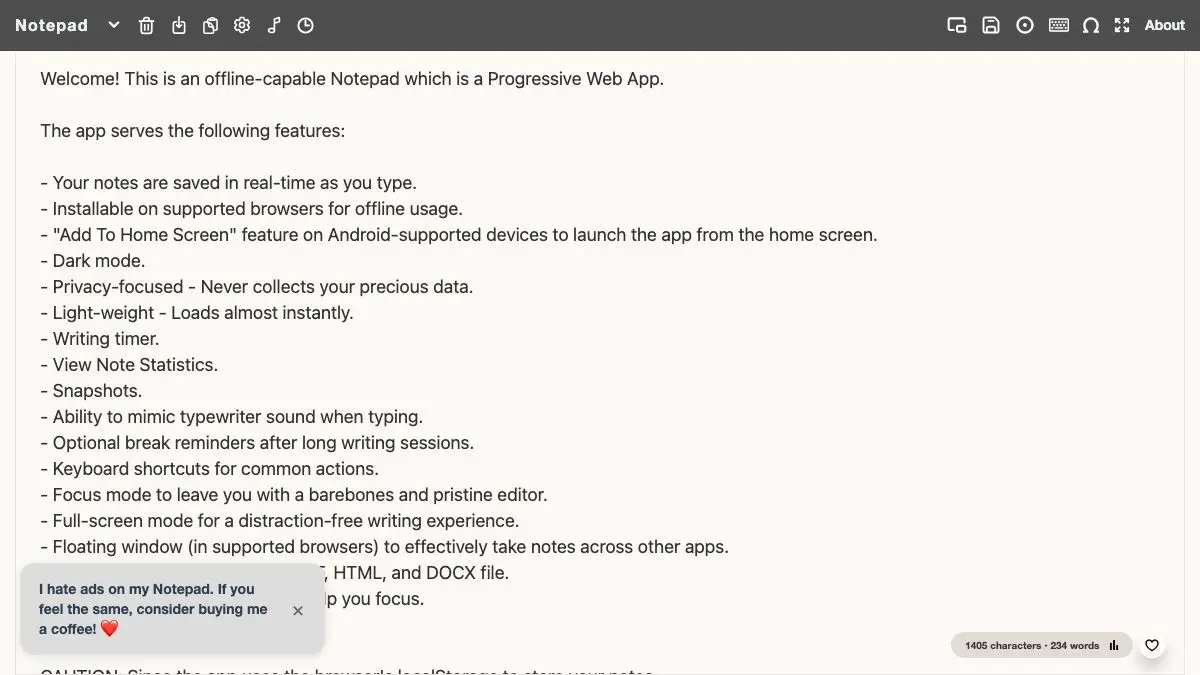
Notepad is a text editor that respects how little you actually wanted. You open the URL, a blank page appears, you type. That is the entire product. There is no onboarding modal, no workspace to name, no invitation to add teammates, and no prompt to upgrade for the ability to make a second note.
It is the digital equivalent of the back of an envelope, and it is astonishing how often that is exactly the right tool.
What is Notepad?
Somewhere along the way, note-taking software got ambitious. Modern apps want to be your second brain: nested databases, bidirectional links, AI summarization, a graph view, a mobile companion, a subscription. All of that is genuinely useful if you are building a knowledge system. It is absurd overkill when you just need somewhere to paste a tracking number for ninety seconds.
Notepad is the correction to that drift. It is a single web page with a text area, styled to look like the plain desktop notepad most people grew up with, and it saves what you type into your browser’s local storage as you go. Close the tab, reopen it tomorrow, the text is still sitting there.
The important design decision is what is missing. No account means no password, no email confirmation, no privacy policy to think about, and nothing to sync. The text never leaves your machine because there is nowhere for it to go. That is a real tradeoff rather than a free lunch: you gain instant, frictionless, private scratch space and you give up cross-device continuity.
It is also open source, which is why variations of it keep showing up. The concept has been reimplemented dozens of times because it is small enough to build in an afternoon and useful enough that people keep wanting their own.
The result is one of those tools that sounds too trivial to bookmark, right up until the week you realize you have used it eleven times.
What can you do with Notepad?
- Use it as a scratchpad. Paste something you need to hold for two minutes without polluting a real notes app with junk.
- Strip formatting from text. Paste rich text in, copy plain text out. It is the fastest formatting laundromat available.
- Draft a message before sending it. Write the angry email in a tab that cannot autocomplete a recipient and send it by accident.
- Keep a running day list. Type your tasks in the morning, delete lines as you go, let the browser remember it.
- Take notes during a call. No app switching, no window that steals focus, no save dialog.
- Park text between devices via copy-paste. Combine it with a transfer tool when you actually need it elsewhere.
- Pin it permanently. Many people keep it as a fixed first tab, the way you would keep a pad next to a landline.
Tips to get the most out of it
Understand that local means local. Your text lives in that browser profile on that device. Private windows, aggressive cookie-clearing extensions, and “clear browsing data” will all take it with them. Treat it as a whiteboard, not a filing cabinet.
Pin the tab. The entire value of a scratchpad is that reaching it costs nothing. A pinned tab in the same position every day gets used; a bookmark three folders deep does not.
Give it a keyboard shortcut instead. Most browsers let you assign a search keyword to a URL, so typing something like n plus Enter in the address bar opens it instantly. That is faster than hunting for a tab.
Use it as the intermediate step for messy pastes. Copying text out of a PDF, a chat window, or a slide deck usually drags along fonts, colors, and invisible formatting. Round-tripping through a plain text area kills all of it.
Do not put secrets in it. Local storage is convenient, not secure. Anyone with access to your unlocked machine and browser can read it, so passwords and account numbers belong in a password manager.
Copy anything you care about out within the day. The whole point is impermanence. If a scratch note has quietly turned into something important, that is your signal to move it into a real document.
If you like Notepad, also try…
- Excalidraw: the same no-account, open-a-tab-and-start philosophy, applied to diagrams and sketches.
- Hemingway Editor: when the scratch draft needs to become actual prose someone else will read.
- Puter: a full desktop environment in a browser tab, for when one text area is not enough.
- Raindrop.io: the opposite end of the spectrum, for the things you do want organized and synced forever.
More friction-free tools in Productivity, and plenty of adjacent small utilities in Tools & Utilities.
Frequently asked questions
What is notepad.js.org?
It is a minimal text editor that runs entirely in a browser tab. You open the page, start typing, and the text is kept in your browser's local storage so it is still there the next time you visit. There is no sign-up step and no server-side account.
Is Notepad free?
Yes. It is a free, open source web app with no account, no subscription tier, and no paywalled features. The whole thing is a single page that loads and then gets out of your way.
Where are my notes saved?
In your own browser, using local storage rather than a remote account. That means the note follows the browser and device you wrote it on, not you. Clearing site data, using private browsing, or switching to another machine will not carry the text over, so copy anything important somewhere durable.
Does Notepad work offline?
Once the page has loaded it does not need a connection to keep working, and many people leave it pinned as a permanent tab. Because everything happens client-side, typing never waits on a network round trip.