// 2026-07-02 · Design & Creativity · by Bob Smith
Piskel: Free Online Pixel Art and Sprite Animation
Piskel is a free browser sprite editor for animated pixel art, layers, onion skinning, live preview and one-click GIF or spritesheet export. No account needed.
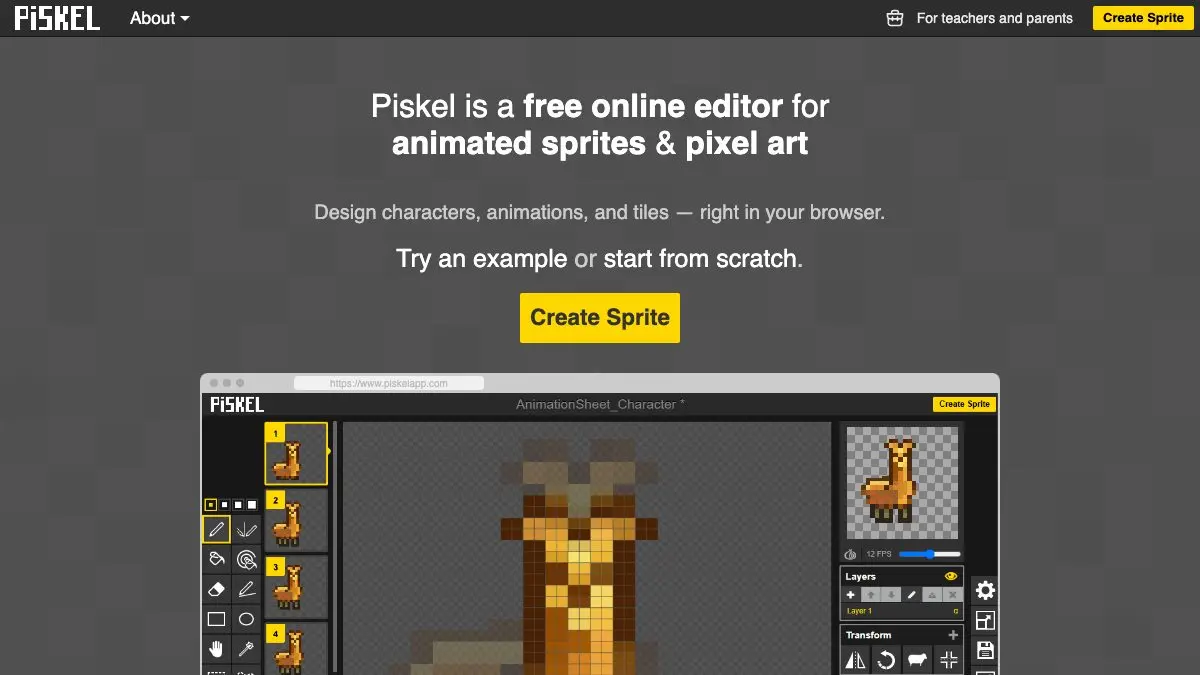
Piskel is a free online sprite editor for making animated pixel art. You draw frame by frame, a live preview loops your animation in the corner as you work, and when you’re done you export an animated GIF or a game-ready spritesheet. It’s free, it’s open source, and there’s no account required to start.
If you’ve ever wanted to make a little guy who walks, this is where you do it.
What is Piskel?
Pixel art has a beautiful property: the constraints do a lot of the work. A character can be sixteen pixels tall and still have personality, and animating one is a matter of nudging a handful of dots. The hard part has always been the software, either a heavyweight editor built for photographs, or a specialist app you have to buy and install.
Piskel is neither. It’s a browser tab. It opens instantly, it’s built specifically for sprites rather than adapted from something else, and the entire interface is arranged around the one thing that matters: the strip of frames along the side and the animation preview that never stops looping.
That preview is the secret. You are always looking at the finished thing while you make it. Adjust one pixel on frame three and you see the walk cycle change immediately. It short-circuits the usual animation workflow of guess, render, watch, sigh, repeat.
What can you do in Piskel?
- Frame-by-frame animation. Add, duplicate and reorder frames in a strip, and set the playback speed in frames per second. The preview loops continuously so you always know how it reads in motion.
- Onion skinning. See ghosted versions of the neighboring frames underneath the one you’re editing. This is the single most important animation feature there is, and it’s one click away.
- Layers. Keep a character on one layer and their equipment or effects on another, so you can rework one without redrawing the other.
- Proper pixel tools. Pen, eraser, paint bucket, whole-color replace, color picker, rectangle and circle shapes, a move tool, plus lighten/darken and dithering brushes for shading.
- Mirror drawing. Draw one half of a symmetrical sprite and get the other half free. Enormous time-saver for faces, ships and anything front-facing.
- Palette management. Build and reuse a limited palette, which is how good pixel art stays coherent.
- Import existing work. Bring in an image or an existing spritesheet, tell Piskel the frame size, and keep editing it.
- Export anywhere. Animated GIF for sharing, PNG spritesheet for game engines, or a ZIP of individual frames. No watermarks, no limits.
- Save online or locally. Work persists in your browser, and creating a free account lets you keep a gallery of sprites across devices.
Start something small at piskelapp.com.
Tips to get the most out of it
- Start smaller than you think. A 32x32 canvas is plenty for a character and about four times easier to animate than 64x64. Beginners almost always pick a canvas that’s too big and then abandon the animation halfway through frame two.
- Duplicate, don’t redraw. Never start a new frame from blank. Duplicate the previous frame and move a few pixels. This is how animation actually works and it keeps your sprite from wobbling between frames.
- Turn onion skinning on immediately. It’s off by default and it changes everything. Being able to see the previous frame ghosted underneath is the difference between a smooth walk cycle and a character having a seizure.
- Limit your palette to about eight colors. Real pixel art gets its punch from restraint. Pick a small palette, save it, and force yourself to shade with what you have instead of reaching for a new hue every time.
- Watch the preview at the wrong speed. Crank the FPS way up and way down while you work. Problems that are invisible at 12 fps, a limb that jumps, a frame that’s held too long, become obvious at 2 fps or 30.
If you like Piskel, also try…
- JS Paint: the classic MS Paint experience, rebuilt for the browser. Perfect for quick pixel scribbles.
- Photopea: a free full-power image editor in a tab when you need layers, masks and PSD support.
- Scratch: put your sprite in an actual game. It even has a built-in pixel editor of its own.
- Coolors: build the tight color palette your pixel art deserves before you start drawing.
- Browse more making tools in Design & Creativity.
Frequently asked questions
What is Piskel?
Piskel is a free online sprite editor for creating animated pixel art. It gives you frame-by-frame animation with a live preview, layers, onion skinning and pixel drawing tools, and exports finished work as an animated GIF, a PNG spritesheet or individual frames. It runs in the browser with nothing to install.
Is Piskel free?
Yes, Piskel is completely free and open source. There is no paid tier, no watermark and no export limit, and you can use it without creating an account, though signing up lets you store your sprites online.
Can I use Piskel offline?
Yes. Alongside the web version there are downloadable desktop builds for Windows, macOS and Linux, so you can keep working without an internet connection.
Can Piskel export sprites for a game engine?
Yes. Piskel exports PNG spritesheets with configurable rows and columns, plus animated GIFs and zipped individual frames, which covers what engines like Unity, Godot and Phaser expect. You can also re-import an existing spritesheet to keep editing it.